
Who sails this route: vessels and companies for your voyage
Updated November 16, 202610 min read
On this page
"Who sails this route" is a block on the cargo board that shows the vessels, and the companies that manage them, which have already sailed your route. Each end of the voyage can be a port, a country or a sea region, for example "Black Sea → Persian Gulf".
The list is built from vessel port call history since 1 May 2026. When direct voyages are few, the block adds vessels from nearby ports and the same region and labels where each one comes from.
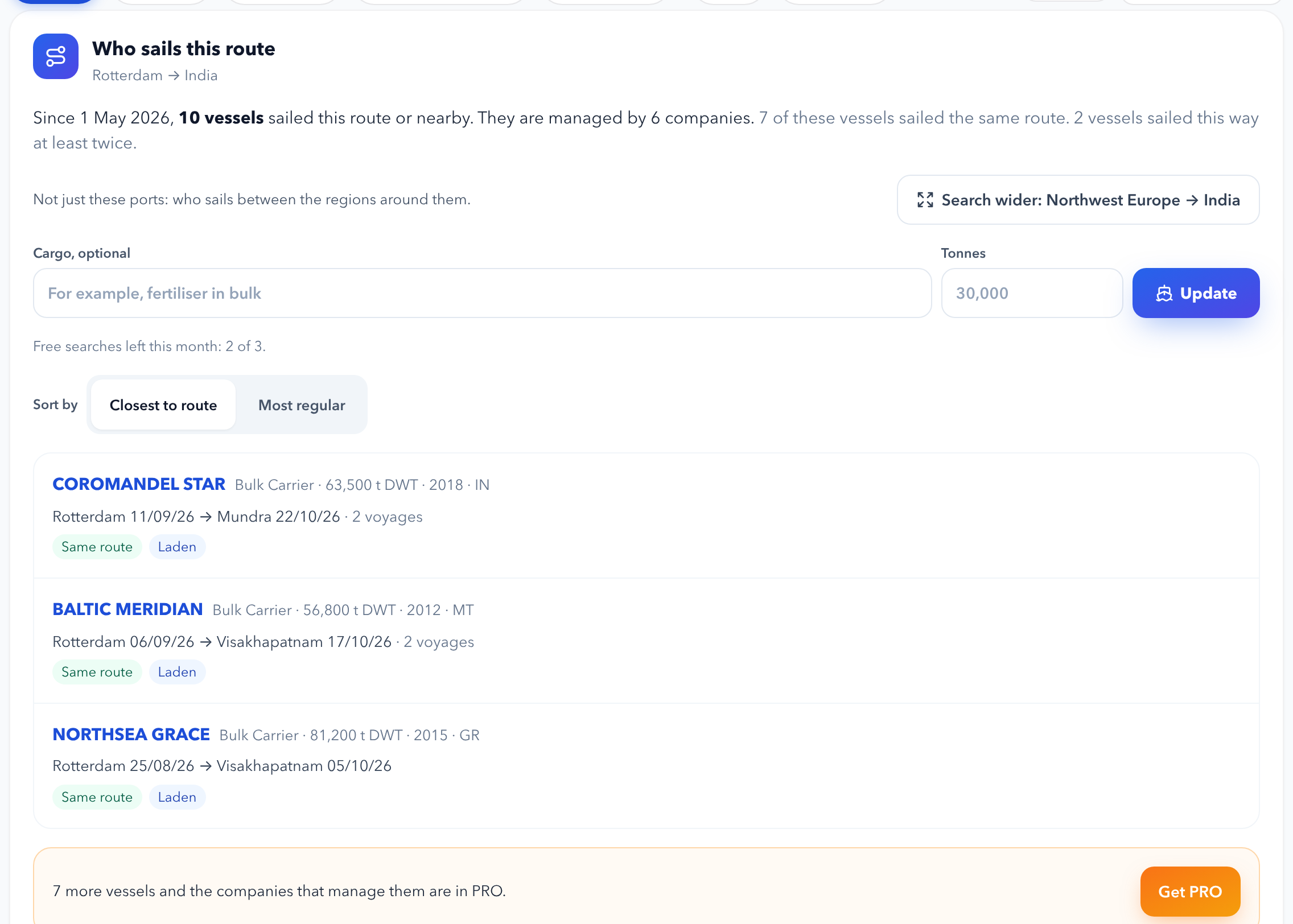
Where to find the block
The block sits on the Cargo board above the listings. When both board search fields, From and To, are set, the block takes the route from them. When one or both are empty, you can type the missing place right in the block: the listing search stays as it is. You can also open the block from Menu → Who sails this route, and Storm AI offers it on the map. A port page has a Who sails this route section with a Find ships button, and the port card on the map has a Who sails from here tile: both open the block with that port already in From, so you only name the destination. On a vessel page, the Voyage history section shows the vessel’s last route with a Show vessels button: it opens the block on the board with that route. Each field takes a port, a country, for example "India", or a sea region, for example "Persian Gulf". As you type, the block suggests places from our directory: regions, countries and ports with their UN/LOCODE. Pick a place from the list and the search takes exactly that place: Alexandria, for example, shows two rows, Egypt and the US. If the place is not in the directory, a note under the field asks you to check the spelling. If you type a port without picking it and several ports share the name, the block takes the one with more vessel calls.
If you posted cargo on the board, the same block is on your listing page. The ports and cargo quantity are already filled in from the listing, and the vessel type filter has the types that carry your cargo selected, so you only press Show vessels. Other visitors to the listing do not see the block. A search from the listing uses the same monthly limit as the board.
How to find vessels for your cargo
- Open the Cargo board.
- Enter the load place in From and the discharge place in To: a port, a country or a region. Press Search.
- In the "Who sails this route" block, press Show vessels.
- To narrow the list, select vessel types above it or enter the cargo quantity in tonnes in the Cargo, t field and press Apply.
- Press Contacts on a vessel row to see who manages the vessel and how to reach them.
Filters: vessel type and cargo in tonnes
Two filters sit above the vessel list. Both are optional, and you can change them as often as you like: changing a filter does not use up a search.
- Vessel type: bulk carrier, general cargo, container ship, tanker, gas carrier, reefer, ro-ro, heavy lift. Each type shows how many such vessels sailed the route. You can select several types. Vessels whose type is missing from the registry are grouped under Type not listed.
- Cargo, t: the cargo quantity, for example 30,000. The block uses it to match the vessel size: it keeps vessels that take the cargo as a full load and lists larger ones below, marked Part cargo. The field accepts 100 to 400,000 t.
On the Free plan you see the top three vessels among the selected types. If no vessels match the filters, the block says so. When the cargo quantity is the cause, Clear cargo removes only the quantity and keeps the selected types. Reset filters clears all filters at once.
Searching by region
A region fits when the trade direction matters more than one port: who carries from the Black Sea to the Persian Gulf, who trades between North China and Southeast Asia. A region covers all its ports, and vessels that loaded or discharged within 300 nm of its borders are labelled Nearby ports.
Regions the search understands:
| Region | Also written as |
|---|---|
| Persian Gulf | Arabian Gulf, AG, PG |
| Red Sea, Black Sea, Sea of Azov, Caspian Sea | Azov, Caspian |
| Baltic Sea | Baltic |
| Northwest Europe | NWE, Continent |
| Mediterranean | Med |
| West Africa, East Africa | WAF |
| North China, South China | Bohai, Yellow Sea |
| Far East (China, Korea, Japan) | East Asia |
| Russian Far East | |
| Southeast Asia, Bay of Bengal | SE Asia |
| US Gulf, US East Coast, US West Coast, Caribbean | USG, USEC, USWC |
| East Coast South America, West Coast South America | ECSA, WCSA |
When the search has a port or a country, a Wider button under Show vessels offers the regions around them, for example "Northwest Europe → India". It changes the route only inside the block: the board listings stay on your search. Back to returns the original route. A region search is a new route and on the Free plan uses one search of the month.
Who sails it regularly
The counts above the list show how many vessels sailed this way at least twice. The Sort by switch changes the order:
- Closest to route — same route first, then nearby ports and the region;
- Most regular — vessels with more voyages this way first; on the Companies tab, companies with more voyages first.
Changing the order does not use up a search. On the Free plan you see the first three vessels in the order you chose.
What each vessel row shows
- Name, type, deadweight, year built and flag.
- The latest matching voyage: load port and date, discharge port and date, and how many such voyages there were.
- How close it is to your route:
| Label | Meaning |
|---|---|
| Same route | loaded at your port or next to it and discharged at the port or country you need |
| Nearby ports | loaded or discharged within 300 nm of your ports |
| Same region | loaded and discharged in the same sea areas |
| Calls at the load port | the right size and calls at your load port, but has not sailed this route yet |
- Right size or Part cargo: when you enter the cargo in tonnes, the block picks vessels that take the cargo as a full load and marks larger ones for which it is a part cargo.
- Laden: the vessel's draught went up at the load port or down at the discharge port. Port call history does not tell what cargo was on board.
- Company: the vessel's manager in the registry; when there is none, the ISM manager or the owner. The voyage charterer may be a different company.
- Contacts button: when the row shows a company, the button opens its page with the company's website, email and phone when we have them (on PRO). When the row shows no company, the button opens the vessel page at the Ownership section.
What each plan includes
| Plan | What you see |
|---|---|
| Not signed in | how many vessels and companies sailed the route, and how many of them on the same route |
| Free and Personal | the top three vessels without companies, 3 searches per calendar month |
| PRO and Enterprise | the full vessel list, the Companies tab, no search limit |
Repeating a search for the same route within the month does not use up the limit, even with other filters. The counter resets on the 1st.
No matching vessels? Post your cargo on the board for free, so owners and brokers can see it.
How to watch a route
Watch this route is a weekly check of a saved route: when vessels sail it that were not there in the previous check, you get an email, and a Telegram message if the alerts bot is connected.
- Find vessels on the route and press Show vessels.
- Under the vessel list, press Watch this route. The route is saved with the selected vessel types and cargo in tonnes.
- Vessels already in the results are not emailed: the email reports only new ones.
- Your routes are in the dashboard: Screening → Watching → Routes. It shows since when you watch each route and when the last email came, and Stop watching removes a route.
| Plan | Route watch |
|---|---|
| Free | no: the button opens a window with the plans |
| Personal | up to 3 routes; the email lists 3 vessels per route, the rest are in PRO |
| PRO | up to 10 routes; the email lists up to 10 vessels per route |
| Enterprise | no limit |
The email shows each vessel's name, type, deadweight and last voyage, and Open the route takes you to the board with that route. Companies and contacts are not in the email: you see them on the board under your plan's rules. If your plan changes to Free, the routes stay in the list but no emails come for them.
Voyage shortlist as one PDF
Under the results, the block offers a Voyage shortlist: the same route, cargo and quantity as one PDF document, ready to forward to a colleague or client.
The shortlist contains:
- Request: load port, discharge, cargo, quantity and the vessel size that suits the cargo.
- Vessels: all matches, up to 150, with the last voyage and why each vessel is in the shortlist.
- Companies: up to 100, with country, number of vessels and voyages and a link to the company page on rynda.io.
- How vessels were picked: four steps and how many vessels are in each.
To get a shortlist:
- Find vessels in the Who sails this route block.
- In the Voyage shortlist row, press PDF · $29.00 or PDF · in plan.
- Check the route and cargo in the dialog and press Buy or Get the PDF.
The PDF arrives by email, usually within a few minutes, and stays in your account under Screening → Reports and dossiers → My reports.
| Plan | Voyage shortlist |
|---|---|
| Not signed in | not available |
| Free and Personal | $29 per shortlist |
| PRO | 2 shortlists a month per organisation included, then $29 |
| Enterprise | 5 shortlists a month per organisation included, then $29 |
During the PRO trial, the shortlist is paid for separately. Shortlists included in the plan are used by the organisation owner. Ordering the same route, cargo and quantity again within 24 hours opens the shortlist you already have.