
Registration and sign-in on rynda.io
Updated November 23, 20267 min read
On this page
Registration on rynda.io takes three steps and about a minute: an email with a code, "you are signing up as", and your role. No documents are needed: a company verifies itself later in the account, if it wants to.
How to register
- Click "Sign up", enter your email and click "Send code". A 6-digit code arrives within a minute; type or paste the digits into "Code from the email" — the check runs on its own. The code is valid for 3 hours. A corporate mail server sometimes holds an email from a new sender for half an hour or longer: check your spam folder or wait, the code will not expire in that time. "Resend" sends a new code and the previous one stops working.
- Choose a password (at least 8 characters) and click "Continue".
- Pick how you sign up: "An individual" or "A company". Enter your name, citizenship (for a company — the country of incorporation and the company name) and phone and click "Continue": pressing it accepts the Terms of Use and Platform Rules.
- Tell us what you do and where we start, then click "Get started".
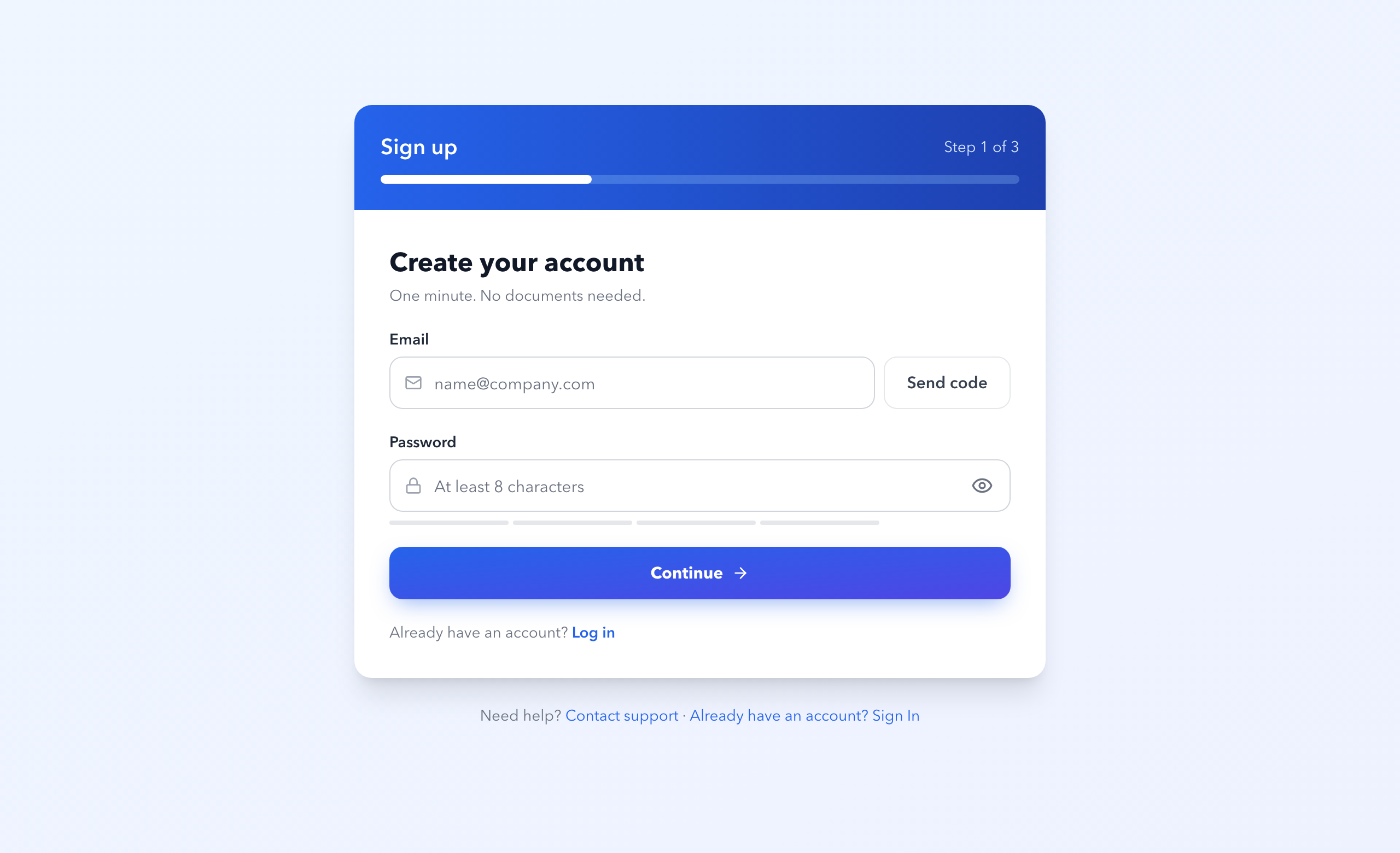
On a phone the form opens full screen. You are signed in from that moment. The button on the "Account created" screen takes you to what you chose as your first step: the map or the dashboard.
What the country and phone decide
- Citizenship (for a company — the country of incorporation) and the phone code set which terms apply and the account language. Most countries get the international terms in English; a few jurisdictions get local-language terms plus a cross-border data transfer consent.
- The country is pre-filled from the site language and your browser, and until you pick one it follows the phone code: paste a "+372 …" number and the citizenship becomes "Estonia". A country you chose yourself is never overridden: a citizen of one country with a phone number from another gets the terms of their citizenship.
- You can paste a full number in any format — "+372 5123 4567", "00 49 30 …": the country code switches on its own. Some countries share a code — the United States and Canada share +1; pick the country in the code list by flag and name.
- The code from the email can be pasted as a whole — the cells fill in by themselves.
How you accept the terms
You accept the terms with a button, not a checkbox. Above "Continue" on the "You are signing up as" step, the form says that pressing it accepts the Terms of Use and Platform Rules and confirms that you have read the Privacy Policy and Cookie Policy. By pressing it, you enter into the agreement and accept the rules for listings and messages; the policies explain how data and cookies are handled. Each document name in that text is a link to the document.
What you tick at registration
The checkboxes sit on the "You are signing up as" step, under the phone. Each document name in them is a link to the document.
| Checkbox | Required | What it means |
|---|---|---|
| "Optional: receive Rynda marketing emails about news and offers" | no | platform news, plan offers, promotions and Rynda Tech offers |
| "Optional: I agree that RYNDA GLOBAL FZCO may use web analytics…" | no | Google Analytics and Rynda's own analytics linked to your account, with session recordings; details are in the Cookie Policy |
Where the law of your country requires it, a separate checkbox asks for consent to the cross-border transfer of personal data; it is required there.
Both optional checkboxes start unticked, and registration works the same without them. Your analytics choice is saved in your account and applies to the English version of the site on every device where you are signed in; change or withdraw it with Cookie Settings at the bottom of any page. Without the checkbox, only Rynda's section statistics run, without your name or email; you can opt out there too.
Turn marketing emails on or off at any time: account menu → Notifications → Marketing emails. All documents are collected on the Legal documents page.
Role and first step
On the third step you choose what you do: shipowner or operator, broker, charterer or trader, forwarder, agent or terminal, compliance or insurance, crewing or seafarer, "I follow vessels". The role sets the order of the dashboard spaces and restricts nothing — you can change it in your profile.
The first step decides where you land after registration:
| Where we start | Where the "Account created" button leads |
|---|---|
| Get alerts for a vessel or a fleet | the dashboard, Fleet: the "Add your first vessel" screen |
| Find tonnage or cargo | the dashboard, Deals: My listings |
| Check a vessel: sanctions, PSC, history | the dashboard, Screening: Recently viewed and the vessel search |
| Just look at the map | the map |
If you were looking at a company or cargo page right before signing up, the dashboard opens in Screening or in Deals.
Individual or company
| An individual | A company | |
|---|---|---|
| Terms | in your name | with the legal entity |
| What to enter | citizenship, phone | country of incorporation, company name, registration number (optional), phone |
| What comes next | add a company in your profile at any time | verify the company in the account — partners see a badge; invite your team (on the ENTERPRISE plan) |
Neither an individual nor a company uploads documents at registration.
If you leave before finishing
Your answers are kept for 24 hours. When you come back or reload the page, you only re-enter the password (the email is already verified) and land on the step where you stopped: name, country, company, phone, role and first step are all still there. The password itself is never stored, so you type it again.
The "Account created" screen survives a reload too: the account already exists, so you stay on it instead of starting over.
The previous registration form
Some users still see the previous form: email and code → personal details with the same consent checkboxes → role → company details → completion. An individual needs no tax ID there; a company enters its registration details — at least the name, registration number and address. The document upload in that form can be skipped.
Signing in
Four ways, all on the same sign-in page.
Email and password — the usual route if you set a password.
An email code — the "Sign in with an email code" button. No password needed: enter your email, get a six-digit code, it lasts 30 minutes and works once. This is the route to use when you have no password: if you bought a document without creating an account, the account was created for you and nobody ever set a password on it — not you, not us.
A passkey — the "Sign in with a passkey" button. You confirm with your fingerprint, face or device PIN, and you do not type an email or password. Add a passkey first in Account → Security: how passkeys work.
Forgot your password — reset it by email if you had one but cannot recall it.
If your account was created by a purchase, the first sign-in asks for your country and your agreement to the documents: the country decides which document pack we must issue you. It is a single screen, and your purchased documents stay in the account throughout.
What an account gives you
Message the author, build My Fleet, and post cargo or a vessel.
Most of the data is available without an account — you need one to act.